Magicmotorsport Magic Center Login: A Step-by-Step Guide for Flex Users
The MMS Help Desk is gone and Magic Center is live. Your old password still works: sign-in and e-mail verification, step by step with screenshots.
Magicmotorsport has replaced its customer portal. The long-standing mms.magicmotorsport.com (Help Desk) address has given way to Magic Center at center.magicmotorsport.com. The new portal went live on 11 September 2026.
This affects every workshop running Flex, MAGPro2 or any other Magicmotorsport tool. The good news: you do not need to create a new account. The e-mail address registered to your tool and your existing portal password still work. All you have to do is sign in at the new address and enable e-mail verification (2FA) once. It takes about five minutes.
Every step is shown below, in order, with screenshots.
What actually changed
| Item | Before | Now |
|---|---|---|
| Portal address | mms.magicmotorsport.com | center.magicmotorsport.com |
| Portal name | MMS / Help Desk | Magic Center |
| E-mail and password | Your existing credentials | Still valid — no new account, no new password |
| Security | Password only | Password + 6-digit code sent to your e-mail (2FA) |
| Support tickets | Separate Help Desk system | Inside the same portal (My Tickets) |
| Tools, licences, services, coins | Spread across separate screens | Collected on one dashboard |
Before you start
- The e-mail address registered to your tool. This is the address given to Magicmotorsport when your Flex or MAGPro2 was purchased — the same one you used on the old MMS portal.
- Your portal password. The password from the old MMS portal still works. If you cannot remember it, use Forgot password? on the login screen.
- Access to that mailbox. The verification code is sent there. If you can no longer reach the address, you will not be able to finish — sort that out first.
- A computer or phone. The portal runs in a browser; nothing to install.
Step 1 — Open Magic Center
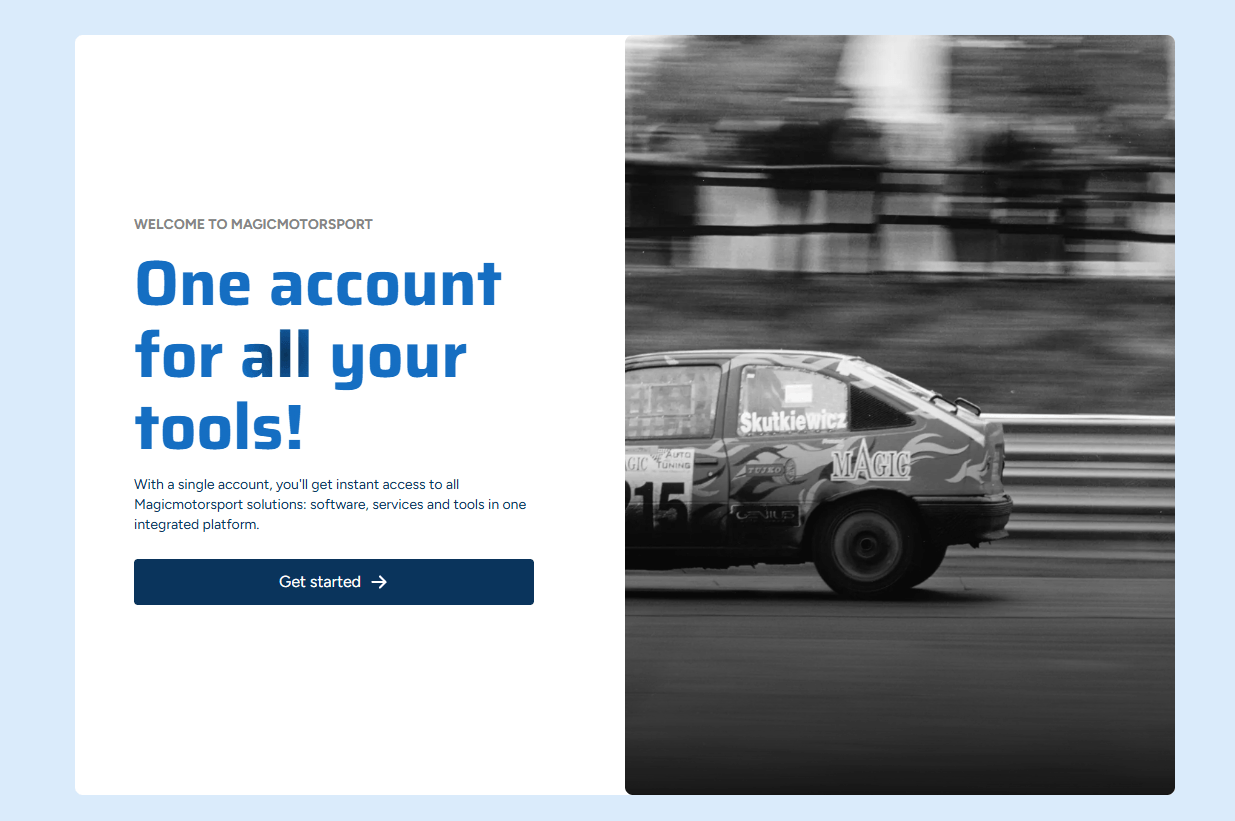
Go to center.magicmotorsport.com. You will see the welcome screen that reads "One account for all your tools!". Click the dark blue Get started button on the left.
Step 2 — Enter your e-mail address
The "Log in or create your Magic account" screen opens. Type the e-mail address registered to your tool into the Email field and press Continue. The Continue button stays greyed out until you type an address — that is normal.
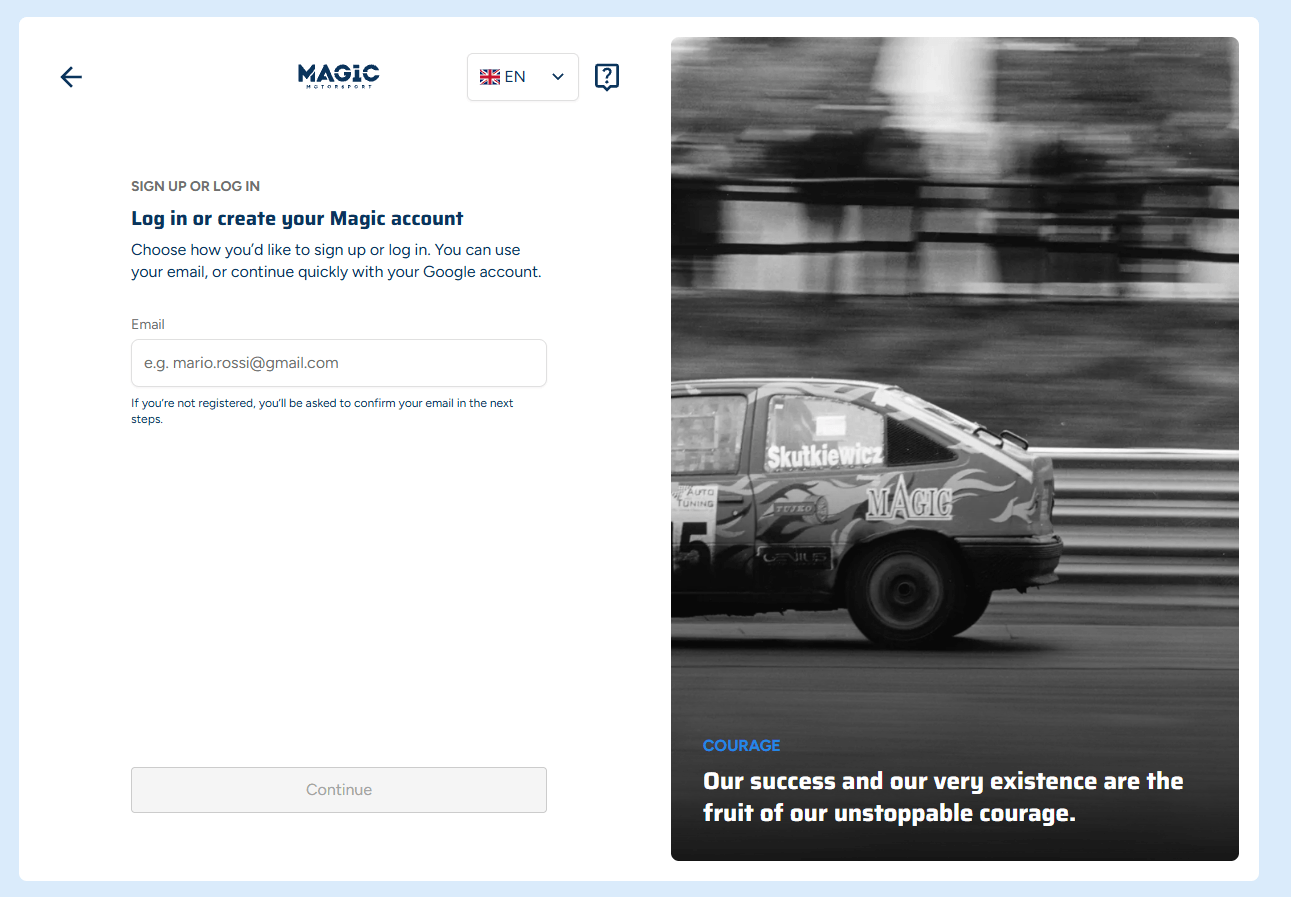
The portal opens in English by default. You can change the language from the flag dropdown marked EN at the top.
Step 3 — Sign in with your password
The "Welcome to Magicmotorsport!" screen appears. Your address is already filled in; type your existing portal password into the Password field and press Login.
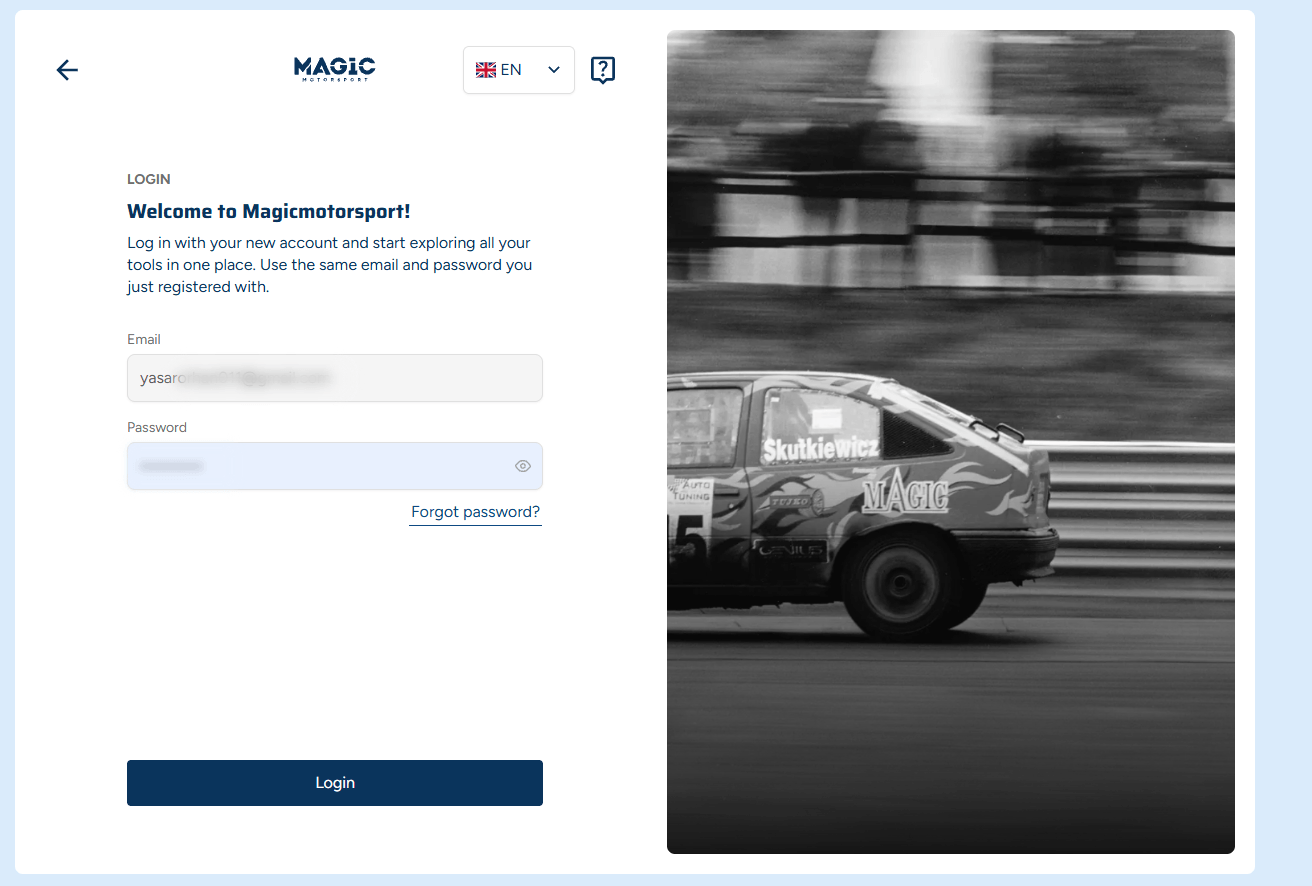
If you cannot remember the password, click Forgot password? below the field; a reset link is sent to the registered address. The eye icon on the right reveals what you typed, which catches keyboard-layout and Caps Lock mistakes.
Step 4 — Enable two-factor authentication (2FA)
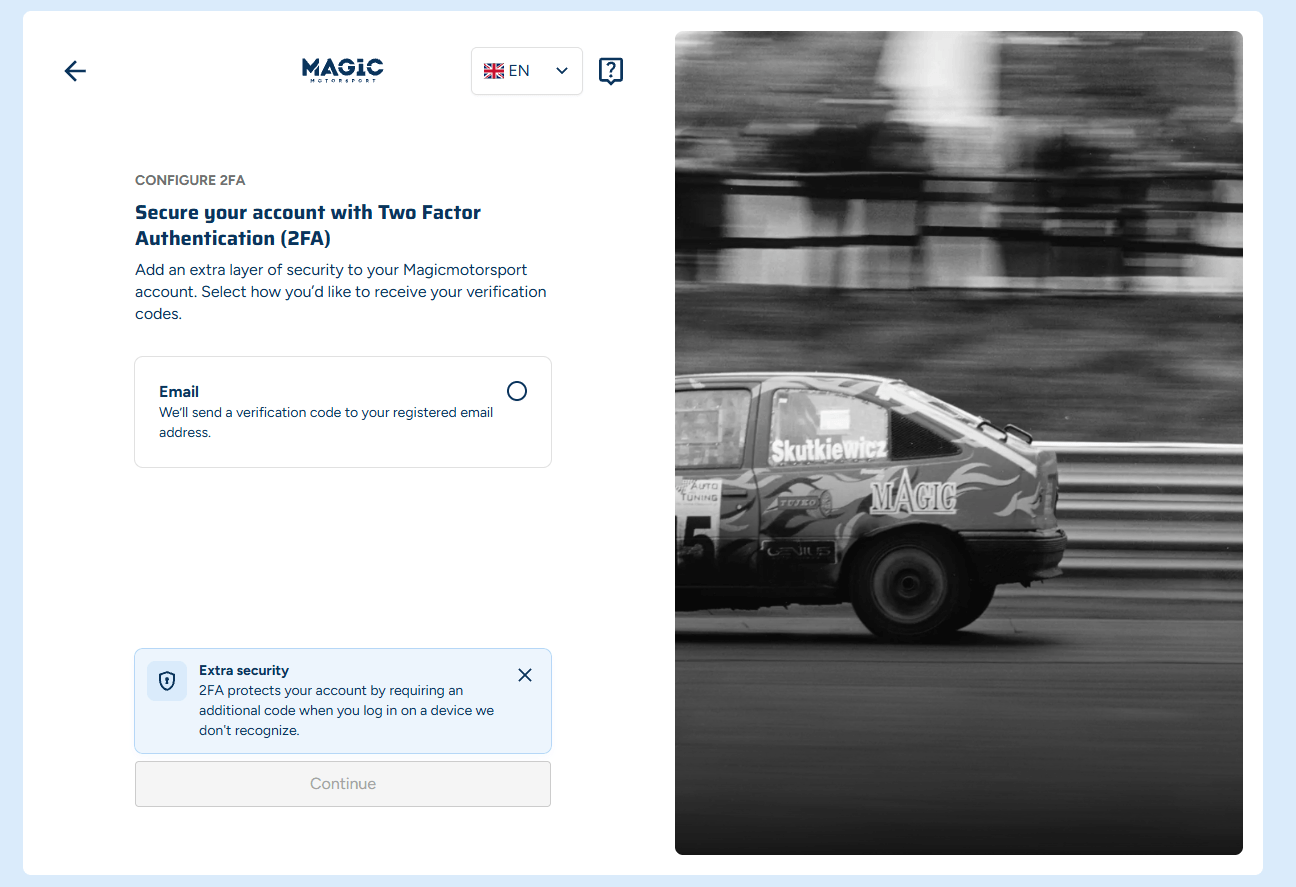
After signing in you land on "Secure your account with Two Factor Authentication (2FA)". This adds a second layer on top of your password: when the portal sees a device it does not recognise, it asks for an extra code.
Click the circle to the right of the Email box to select it, then press Continue at the bottom. Continue stays inactive until a method is selected.
Step 5 — Enter the 6-digit code from your e-mail
Magic Center sends a 6-digit verification code to the registered address. Type it into the Verification code field and press Verify and Enable 2FA.
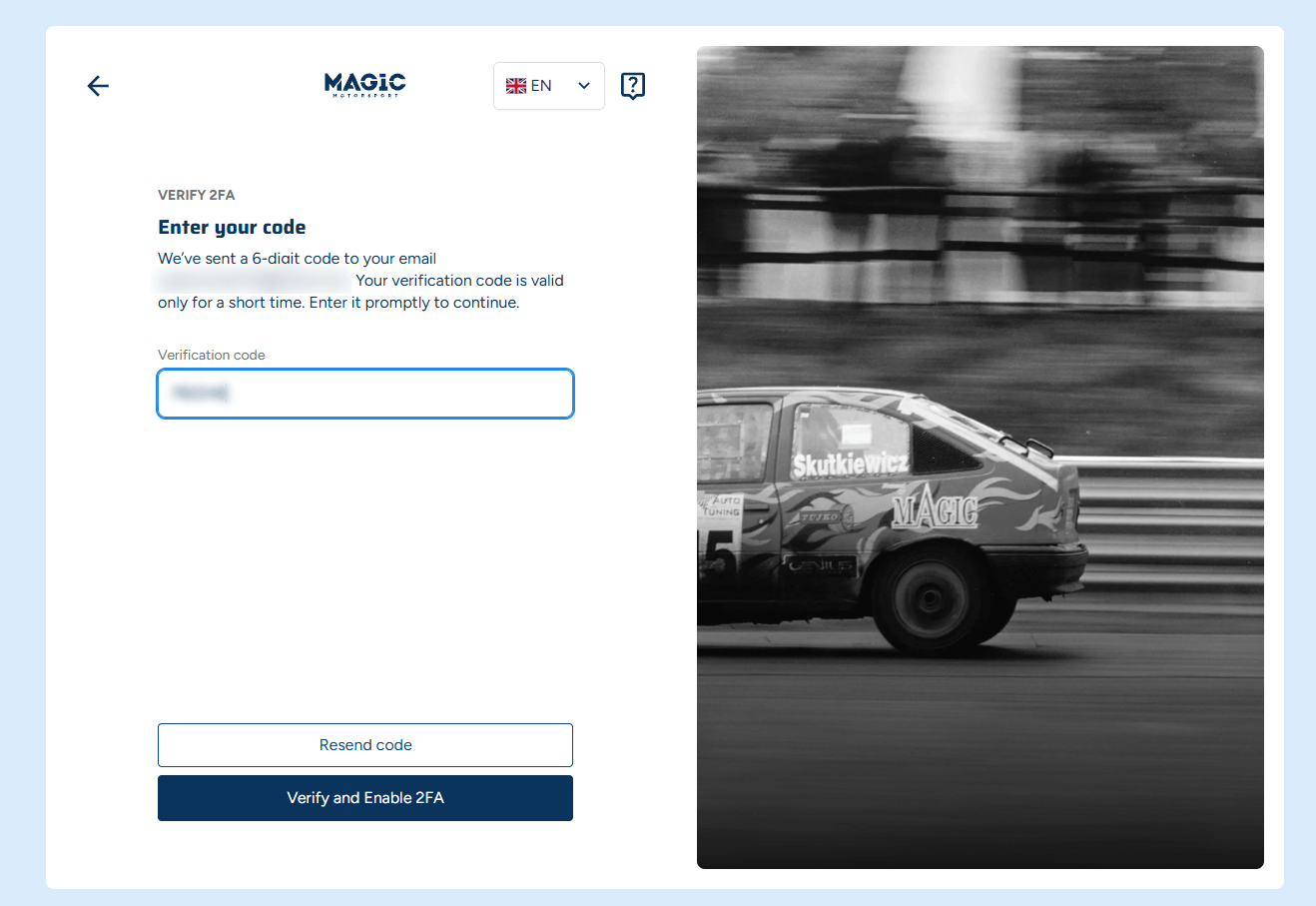
The code is short-lived, so enter it as soon as it arrives. If it has expired or never showed up, request a fresh one with Resend code — the old code will not work. Check your spam folder; on corporate mail the message often lands in quarantine.
Step 6 — Verification complete
Once the code is accepted, an "Email verification enabled!" dialog appears. Your account is now protected by two-factor authentication. Press Continue.
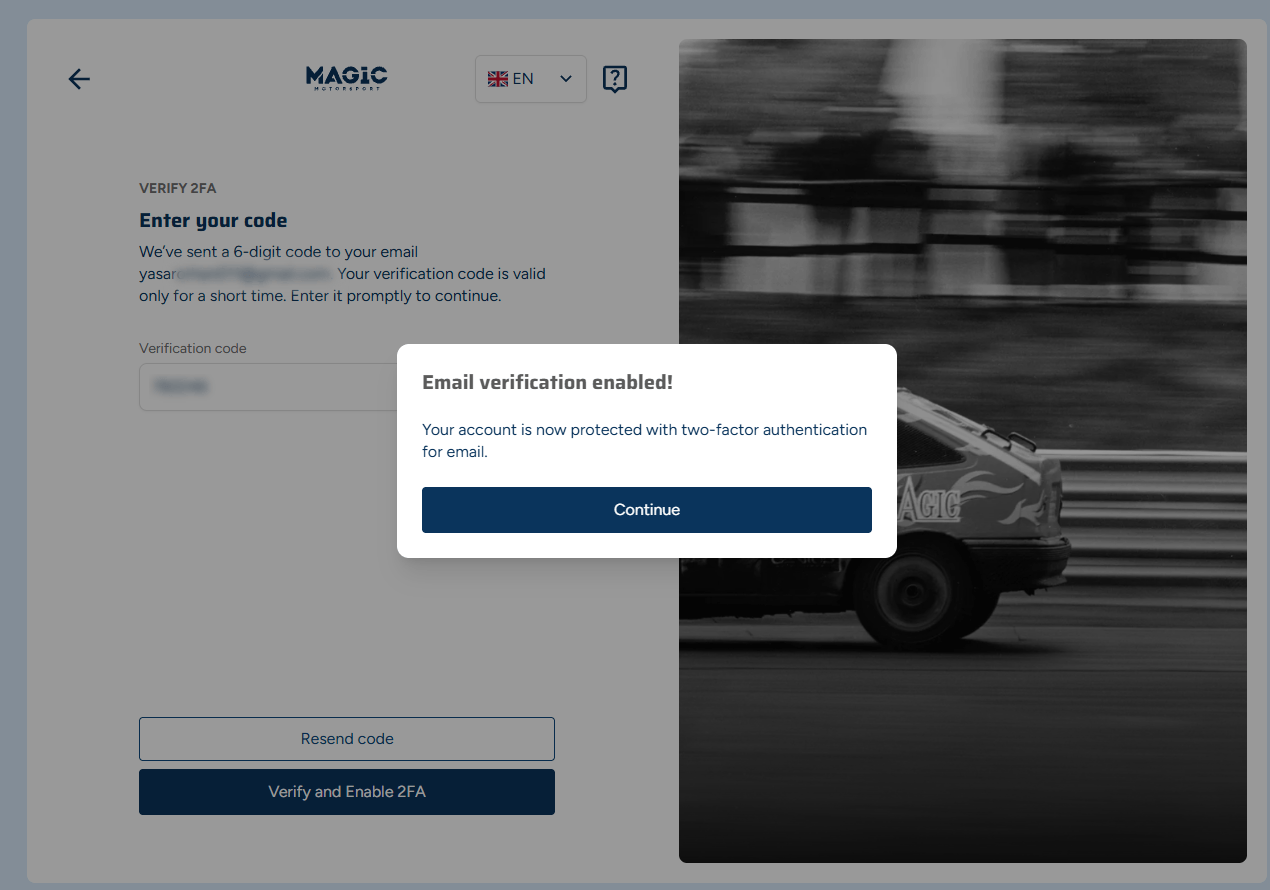
That is a one-time setup. From now on your e-mail and password are enough; the portal may ask for a code again when it sees an unfamiliar device or browser.
You are in — what is on the dashboard
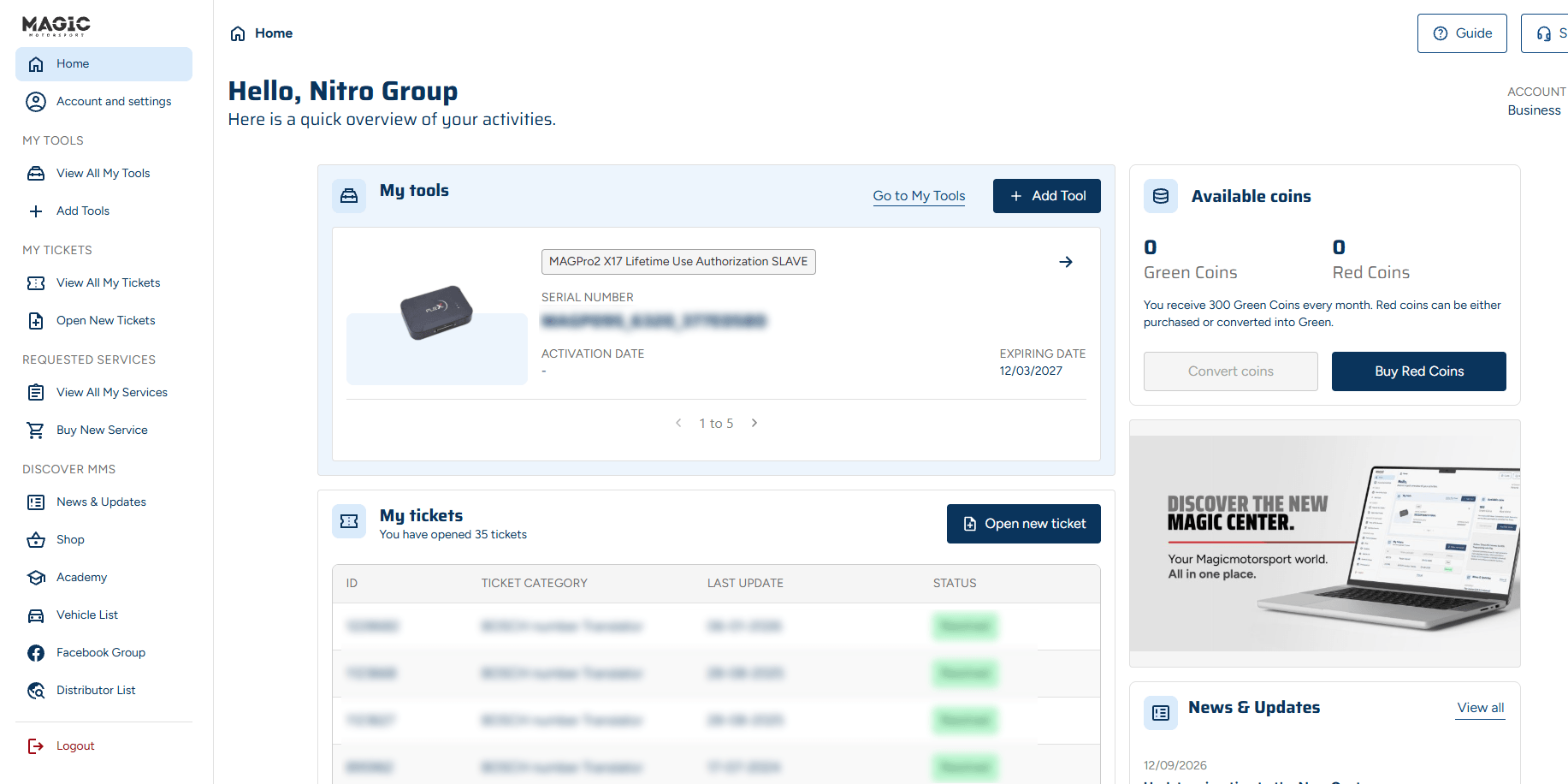
After setup the Magic Center home screen opens: your account name at the top, your tools and tickets in the middle, your balance and announcements on the right.
| Menu | What it does |
|---|---|
| Account and settings | Account details, password and security settings |
| View All My Tools | Your registered tools — serial number, activation and expiry dates |
| Add Tools | Register a tool that is missing from your account |
| My Tickets | Support requests — the section that replaced the old Help Desk |
| My Services / Buy New Service | Services you own and new purchases |
| Available coins | Your Green and Red coin balance, the credit used for Magicmotorsport services |
| Vehicle List | Supported vehicles and ECUs |
| News & Updates | New protocol and software announcements |
The redesigned Master Panel and the File Encryption tools for Flex Master users also live inside this portal.
Common problems
| Situation | What to do |
|---|---|
| I cannot remember my password | Use Forgot password? on the login screen; the reset link goes to your registered address. |
| My password is rejected | Reveal it with the eye icon and check keyboard layout and Caps Lock. If it still fails, reset it. |
| The verification code never arrives | Check spam, wait a couple of minutes, then use Resend code. |
| The code is rejected | It has expired. Request a new one with Resend code and use the latest message. |
| I do not know which e-mail is registered | Contact your Magicmotorsport dealer with the tool serial number. |
| I no longer have access to that mailbox | An address change request is needed; write to your dealer with the serial number. |
| My tool is missing from "My tools" | Add it with Add Tool; if that fails, contact your dealer. |
Frequently asked questions
Do I need to create a new account?
No. Your existing account carries over. The e-mail address registered to your tool and your password both still work — only the address changed, plus the one-time e-mail verification setup.
Is my old mms.magicmotorsport.com password still valid?
Yes. You can sign in with the password you used on the old portal. If you cannot remember it, reset it with Forgot password?.
Will I have to enter a code every time?
No. After setup, your e-mail and password are enough for normal logins. The portal may ask for an extra code when it detects an unfamiliar device or browser.
Were my tickets and history deleted?
No. Support requests moved into My Tickets inside Magic Center, where you can still see your open requests and history.
Does this affect my tool licence or subscription?
No. The portal change does not affect licences, activations or expiry dates. You can review them under My Tools.
The portal is sorted — what about the file?
Magic Center manages tools, licences and support. It does not calibrate the ECU file you read. Once you have pulled the original over OBD, Bench or Boot with your Flex, you still need a file service to modify it.
That is where OnlineChipTuning comes in: upload the original, pick the modification you need, get the finished calibration back. Typical turnaround is 10–45 minutes, across 61 brands and 264+ ECU models.
- How it works: /how-it-works
- Stage 1 file service: /stage1
- Supported ECUs: /ecu-database
- Reading method (OBD / Bench / Boot): /ecu-read-method
- Credits and pricing: /pricing
- Upload a file: /#upload
Always keep a full backup of the original before writing, and use a stable bench supply. Where emission-related hardware is involved, homologation and legal responsibility remain with the workshop.